

Nowadays, there are quite a lot AI coding assistants. In this blog, you will take a closer look at OpenCode, a terminal based open source AI coding assistant. OpenCode integrates smoothly with many providers, including GitHub Copilot. If you are looking for a vendor independent AI coding assistant, OpenCode is definitely worth looking at. Enjoy!
1. Introduction
There are many AI models and also many AI coding assistants. Which one to choose is a hard question. It also depends whether you run the models locally or in the cloud. When running locally, Qwen3-Coder is a very good AI model to be used for programming tasks. In previous posts, DevoxxGenie, a JetBrains IDE plugin, often was used as an AI coding assistant. DevoxxGenie is nicely integrated within the JetBrains IDE’s. But, it is also a good thing to take a look at other AI coding assistants. In previous blogs, Qwen Code and Claude Code were used in combination with local models. In another post, GitHub Copilot CLI was discussed. GitHub Copilot CLI integrates very well with GitHub Copilot.
A disadvantage of Qwen Code, Claude Code and GitHub Copilot CLI is that these are all closed source. Another disadvantage of Claude Code and GitHub Copilot CLI is that these are quite limited concerning integration with ‘other’ inference engines or cloud vendors. Especially with GitHub Copilot CLI, you can only use it in combination with GitHub Copilot. This is one of the features where OpenCode shines. Besides that it is entirely open source, there is a huge list of integrations available, even with GitHub Copilot.
In this blog, you will take a closer look at OpenCode, how to configure it, and how to use it.
The official documentation for OpenCode can be found here.
2. Prerequisites
Prerequisites for reading this blog are:
- Some experience with AI coding assistants;
- If you want to compare to DevoxxGenie, take a look at a previous post;
- You need access to a local inference engine (e.g. Ollama) or you need an account at a supported cloud vendor.
3. Installation
The easiest way to install OpenCode is to execute the following bash command. Do note that if you are using Windows, it is recommend to use WSL.
curl -fsSL https://opencode.ai/install | bash
It might be that you need to source your .bashrc or start a new terminal before the opencode command is available.
4. First Startup
Open a terminal and navigate to a git repository. You can use this one if you have none available. Be sure to checkout the github-copilot branch. If you want to execute the commands from this blog, you first delete the .github and src/test directories.
You start OpenCode by typing the command opencode in the terminal. You will see a chat-like textbox.

First thing to do is to connect to an inference engine (local or remote). You do so by the command /connect. In the figure below, you only see a small part of the huge list. Choose for GitHub Copilot.

Next, you need to choose a deployment type. If you want to connect by means of your personal GitHub account, you choose GitHub.com. If you have a GitHub enterprise account, you choose GitHub Enterprise Data residency or self-hosted.

The next steps depend on your choice of the deployment type. You will need to connect to your GitHub account and authorize OpenCode to use this account.
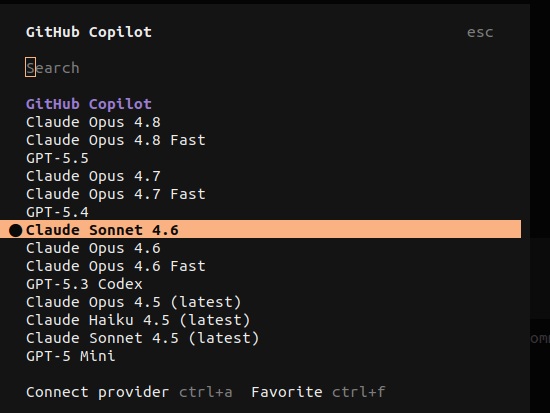
In the last step, you will be asked to choose a default model. You always have the opportunity to change the model by means of the command /models.
5. First Prompt
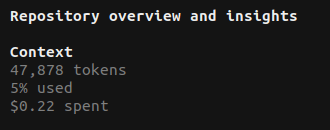
If you enter a prompt, then OpenCode will send the request to the model provider and the model provider will generate the response. Note that the context menu now is much larger than when you first started OpenCode.

In the right top of the terminal window, you can see how many tokens were used, how many of the context window has been used and how much it costed you.
6. Configuration
Just like many other AI coding assistants, you can extend the capabilities of OpenCode.
OpenCode can be extended with agents. The configuration needs to be located in ~/.config/opencode/agents. You can invoke the agents by command /agents.
OpenCode can be extended with skills. OpenCode will search many paths for available skills, but the most convenient one and aligned with the agents configuration is ~/.config/opencode/skills/.
With MCP servers you can add all kind of tools or integrations with other tools (git repository manager, Jira, CI/CD applications, etc.) to OpenCode. The configuration is located in ~/.config/opencode/opencode.jsonc.
7. Why OpenCode?
Maybe the most important question: why OpenCode? I have investigated and explored many AI coding assistants, so what are the advantages/disadvantages of all these coding assistants? My setup is IntelliJ IDEA and I must be able to use local models (via a local Ollama instance) and GitHub Copilot. I also want to be able to configure the AI assistant with agents, skills and MCP servers. This list is not complete, but gives you a direction of what you might expect from a coding assistant.
| Assistant | Open Source | Local Models | Cloud Models | IntelliJ Integration | GitHub Copilot Auth | MCP Support | Maintenance Risk |
| Devoxx Genie | v | v | v | v Native | v | Excellent | High (primarily one core maintainer) |
| Qwen Code | v | v | v | x | x | Good | Low (Alibaba) |
| Claude Code | x | v | v Anthropic | x | x | Excellent | Low (Anthropic) |
| GitHub Copilot CLI | x | x | v GitHub Copilot | x | v | Fair (limitations with company-managed MCP registry) | Low (Microsoft) |
| OpenCode | v | v | v | x | v | Excellent | Medium (active OSS project) |
Until now, I was pretty satisfied with GitHub Copilot CLI, but configuring it with MCP servers has been dramatic. Especially when a company-managed MCP registry is used. Bottom line, you cannot use it at the time of writing. Company-managed MCP servers are always blocked. I tried the GitHub Copilot IntelliJ plugin also. It seems to do a better job, but some MCP servers just don’t work. They do work in OpenCode. Setting up OpenCode including agents, skills and MCP servers took me less than half an hour. Compared to the time I lost with trying to set MCP servers up with GitHub Copilot CLI and the IntelliJ plugin, which took me several hours and in the end, not entirely functional.
8. Conclusion
OpenCode will be my go-to AI coding assistant for the time being. It satisfies all my requirements and it just works.
Discover more from My Developer Planet
Subscribe to get the latest posts sent to your email.
Leave a Reply